 Harshit Mishra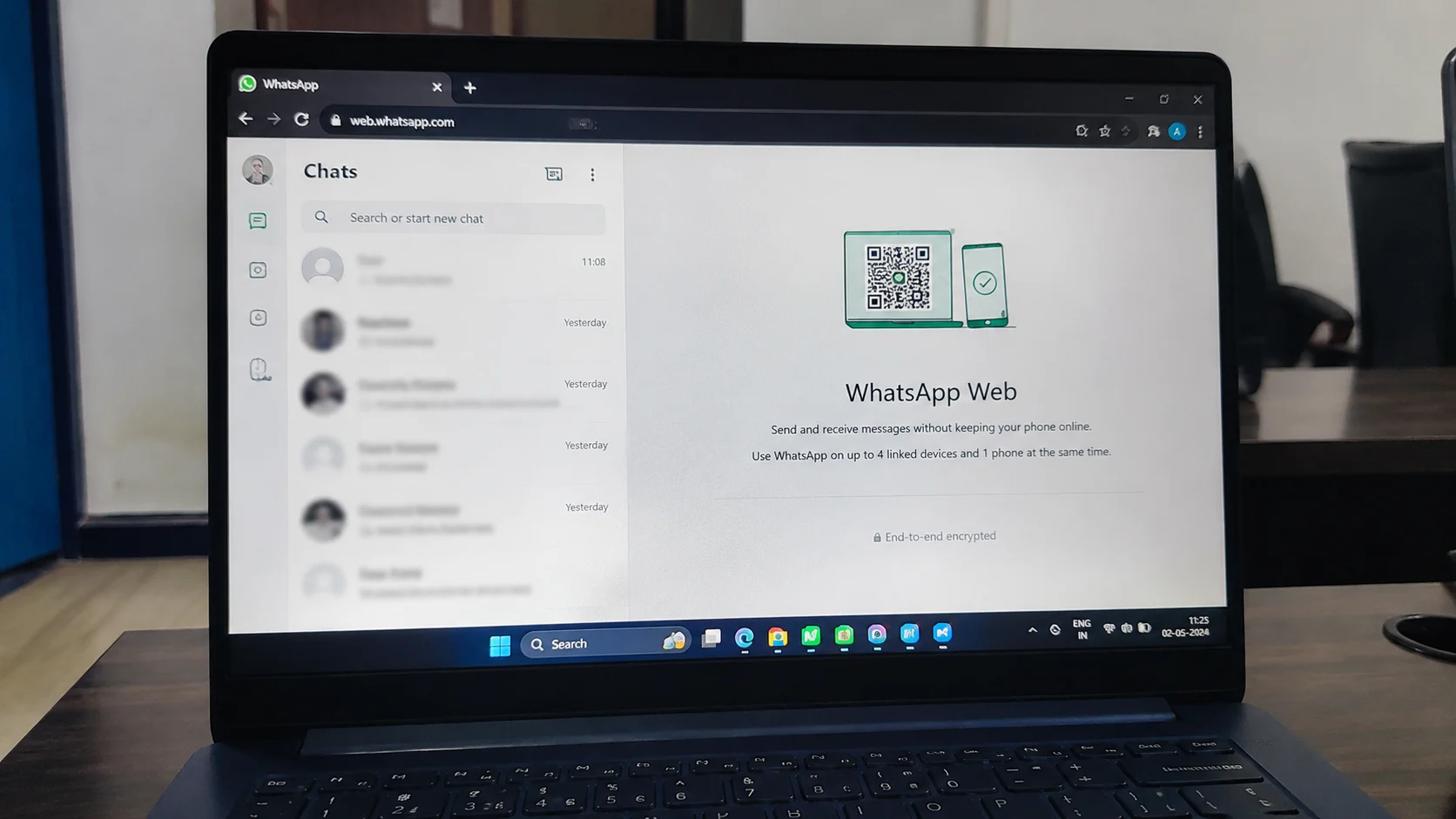
As we know, almost everyone in the world uses WhatsApp to send messages to their family, friends, and their known contacts. In these chats, they talk about their personal information, share photos, and many more things. So to keep all this information safe, you must need to protect your WhatsApp chat.
As we know that WhatsApp already has an app lock feature on mobile phones that comes with a PIN, fingerprint, and password. Now, the same type of protection is also available for WhatsApp Web and the WhatsApp desktop app. If someone uses your computer while you are away, they will not be able to open your chats without the correct password. The setup process is quick and works the same on both Windows PCs and Mac computers.
Table of Contents
Steps to Lock WhatsApp Web with a Password
To lock your WhatsApp Web with a password, just follow the steps:
- First, you just need to open WhatsApp Web
- Then sign in to your account if you are not logged in.
- Click your profile picture in the bottom left corner.
- Open Privacy from the settings menu.
- Then Select App Lock.
- Now click on the Enable App Lock option.
- In the next step, you just need to create a strong password and then confirm it.
- Now click on Done, then save it.
Auto Lock Time Feature
After the setup of the App Lock there is also have an option called App Lock timer so that whatsapp lock itself automatically. You have four choices for automatic lock. Now select as per your need.
- After 1 minute
- After 15 minutes
- After 1 hour
- After 8 hours
Manual WhatsApp Lock
If your are in hurry and want to lock your laptop screen instantly then you can also do this. To lock your laptop screen you just need to open the WhatsApp and then click on the three dot and click on Lock app after that WhatsApp web will lock instantly.
Forgot Your Password?
Forgetting a password is common, so there is no need to worry. If you cannot remember the password, log out of WhatsApp on your computer.
Also Read:- How to Reverse Image Search on Phone and PC
After that, open WhatsApp Web or the desktop app again and sign in by scanning the QR code with your phone. Once you log in, you can turn on App Lock again and create a new password.
Final Words
By adding a password in your WhatsApp Web will improve your privacy. As we know that it takes only a few minutes to set up to protect your personal chats from anyone who uses your computer. You have the option to choose an automatic lock time or lock the app whenever you want. Now you just need to use this feature to protect your privacy and security.






Leave a Reply